Last updated: September 13, 2026
For most people the right answer is the ASUS ZenScreen MB16ACE: 15.6 inches, 1080p, one cable, and a cover that folds into the stand. It is neither the sharpest nor the brightest screen here, but it is the one that goes in the bag and stays there, and it has a fallback none of the others do. The other four picks exist because four specific things break that story: you want to draw on the screen, you need colour you can defend to a client, you want motion smoother than 60Hz, or you want the panel clipped to the lid rather than sitting beside it.
First, though, the question that ruins more of these purchases than any spec on the box.
Check your laptop’s USB-C port before you check anything else
USB-C is a connector shape, not a feature list. Video only travels down it if that particular port supports DisplayPort Alt Mode, and that is decided by the laptop’s chipset and wiring — not by the cable, and not by the monitor. Budget Windows laptops, many Chromebooks, and the second or third USB-C port on machines whose first one works fine are all common offenders. Plug a monitor into a data-only port and the backlight comes on while the screen stays black, which looks exactly like a dead unit.
The one-minute check: look for a small DP logo or a Thunderbolt bolt printed beside the port, or search your laptop’s model number together with “DisplayPort Alt Mode” on the manufacturer’s own spec page. Any Thunderbolt 3, 4 or 5 port carries video. If your port does not, you have three outs, in descending order of how well they work: the monitor’s HDMI input, if it has one, with the monitor powered separately since HDMI carries picture but no power; a DisplayLink adapter, which compresses the image over ordinary USB data at some cost in CPU and latency, fine for documents and hopeless for games; or the ZenScreen below, which ships a driver that runs the panel from a plain USB 3.0 port. A USB-C logo on the box tells you nothing about video; the spec page does, and that is the check How We Pick applies to every claim here.
Cables cause most of the remaining black screens. The USB-C cable that came with your phone is often charge-only wire with no high-speed pairs in it, and it will power a monitor happily without ever carrying a picture. Use the one in the box; if you replace it, buy for video, not for watts.
The five picks
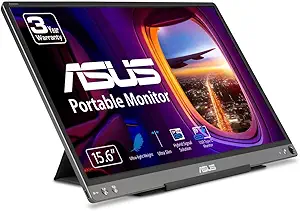
Best all-round travel screen: ASUS ZenScreen MB16ACE
Typically: $150–$210 | Retailer: Amazon
A 15.6-inch 1080p IPS panel that runs off a single USB-C cable and folds into a cover that props it up. What separates it from the pile of anonymous 15.6-inch portables is that USB-A escape hatch: with the ASUS driver installed it runs from an ordinary USB 3.0 port, so it is the one pick that still works on the laptop whose USB-C turns out to be data-only. The tradeoffs are real: no HDMI input, so consoles and cameras are out; measured brightness in the mid-200-nit range, lower again in USB 3.0 mode; and unremarkable 800:1 contrast. Buy it as a place to park windows, not as a screen you look at for pleasure.
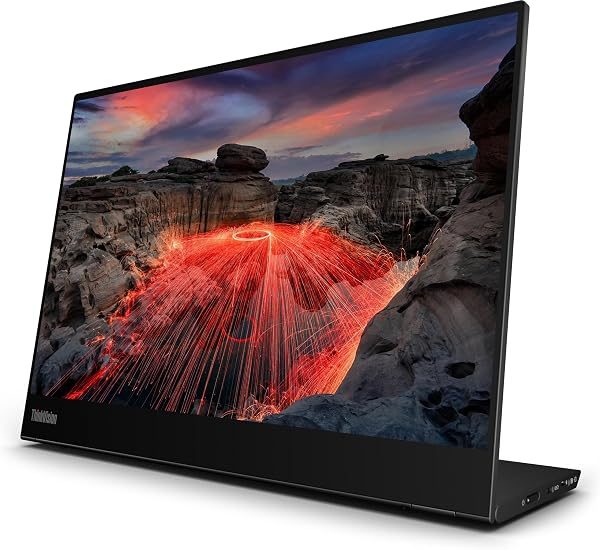
Best if you want to draw on it: Lenovo ThinkVision M14t Gen2
Typically: $250–$350 | Retailer: Amazon
The reason to pay the premium here has little to do with the panel being 2240×1400 rather than 1080p. It is that the touch layer and the bundled pen turn the second screen into a signing pad, a sketch surface and a markup window for PDFs — a different job from “more desktop”. Understand one thing first: touch and pen data travel over USB, not over the video signal, so the pen works on a USB-C connection that carries data and does nothing on a display-only path. At 14 inches it is also the smallest panel here, and you will run it scaled, so those pixels buy sharper text rather than more room.
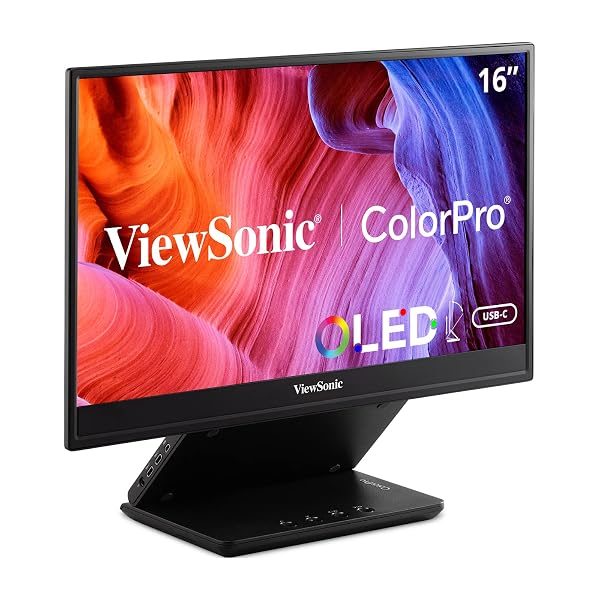
Best for colour work you have to defend: ViewSonic VP16-OLED
Typically: $200–$275 | Retailer: Amazon
The only pick where the panel itself is the reason to buy. OLED gives per-pixel black instead of the 800:1 ASUS quotes for the ZenScreen, and it arrives factory-calibrated and Pantone-validated, which matters when the disagreement about a colour is with a client rather than with yourself. It is also comfortably the brightest screen here — ViewSonic publishes 400 cd/m2 (typ), against the 220 to 250 cd/m2 ASUS publishes for the ZenScreen. Two honest cautions: OLED retains static images, so a taskbar or an editing timeline parked in one place all day for years is the failure mode to plan around; and the panel is 1080p, so at 15.6 inches it is no sharper than the budget picks, just far better.
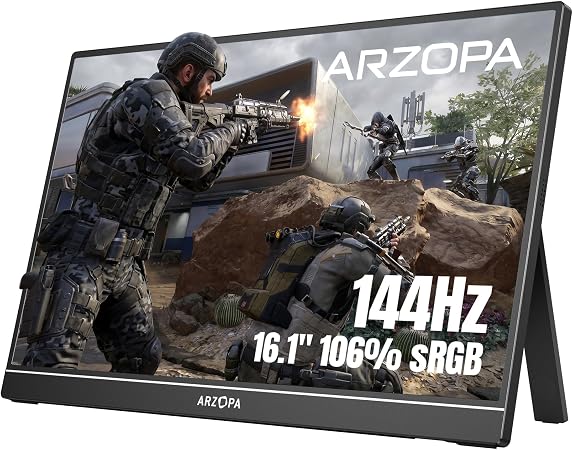
Best for high-refresh gaming: ARZOPA Z1FC 144Hz
Typically: $90–$130 | Retailer: Amazon
16.1 inches, 1080p, 144Hz, a rated 300 nits, 9.3mm thick and well under two pounds. What makes it the sensible gaming pick rather than merely the cheap one is the port layout: two full-function USB-C ports plus mini-HDMI, so a laptop or a Steam Deck runs it on one cable and an HDMI console works provided you feed the spare USB-C port from a charger. Temper the headline number, though: you only get 144Hz if the source can send it. A Nintendo Switch tops out at 60Hz, and plenty of laptops negotiate 144Hz over USB-C but not over their own HDMI output. ARZOPA publishes two different colour figures on the same product page: the spec table says 106% sRGB and the FAQ below it says 100%, so treat that number loosely. This is also a conventional IPS panel, so blacks go grey in a dark room.
Best clip-on screen for a cramped desk: KEFEYA Laptop Screen Extender
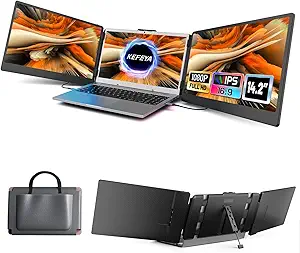
Typically: $200–$250 | Retailer: Amazon
A single panel on a bracket that clamps behind the lid and swings out beside your built-in display. It buys two things a stand-mounted portable cannot: it needs no desk depth at all, which is the whole argument on an aeroplane tray or a hot desk, and it travels already attached. The costs are just as concrete. It hangs weight off a hinge never designed for it, so thin laptops get tippy, and you unclip it before closing the lid. And if you are shopping the wider clip-on category for one of the two-panel versions, check your machine first: two extra displays need two independent video outputs, and no MacBook Air will do it. The M1 and M2 Air drive exactly one external display; M3 and later manage two, and only with the laptop’s own lid closed.
Nits decide where you can use it, not pixels
Portable monitors are dim. The IPS picks here sit between roughly 220 and 300 nits, where a modern laptop’s own screen is usually 400 to 500. That makes a portable an indoor device: fine in an office, washed out next to a bright window, unusable outdoors. If you will work near daylight, brightness is the spec to pay for, and the OLED pick is the only one here with real headroom.
Resolution is what people over-buy instead. On a 14 to 16-inch panel, anything above 1080p gets scaled back up by the operating system so text stays readable, turning those pixels into sharpness rather than desktop area. Buy them if you stare at type all day, not if you want more room.
A second screen runs on your laptop’s battery
On a single-cable setup, every watt the monitor uses comes out of the laptop. Portables this size pull roughly 5 to 10 watts depending on brightness and refresh rate, which on a thin ultrabook is a real bite out of unplugged runtime, not a rounding error. Three things reduce it: drop the brightness, since the backlight dominates the draw; run 60Hz instead of 144Hz when you are not gaming; and on any monitor with two USB-C ports, plug the charger into the monitor and let passthrough feed both devices.
What actually changed this year
OLED portables came down hard in 2026, as the Gen 6 fabs that make these small panels largely finished depreciating and panel cost fell with them; portable OLED has gone from a specialist tier to something an ordinary buyer can consider. Higher-resolution 2.5K panels and 120Hz refresh have started appearing in mainstream models rather than only halo ones. Folding has not arrived: the folding-OLED portables that exist remain novelties at several times the cost of everything on this page.
The practical read: if you want a second window for Slack, a browser and a terminal, nothing that happened this year changes your decision, and the cheapest 1080p IPS panel matching your port situation is the right buy. If you have been waiting for portable OLED to stop being a luxury, this is the first year that is reasonable.
What each maker publishes
Every figure below is copied from the manufacturer page linked in the first column. Where a maker does not state a spec, the cell reads “Not published” rather than a guess or a number borrowed from a retailer listing.
| Model | Screen size (viewable area) | Brightness, as published | Net weight | Touch | Colour gamut | Video and power ports | What holds it up |
|---|---|---|---|---|---|---|---|
| ASUS ZenScreen MB16ACE | 15.6 in | 220 cd/m2 typ (USB 3.0); 250 max (USB-C DP Alt) | 0.71 kg (product page); 0.8 kg “Net Weight with Stand” (spec table) | Not published | Not published | USB-C x 1 (DP Alt Mode & USB 3.2). Accessories list a USB Type-C to A adapter | Height Adjustment: No. Foldable Smart Case turns into a stand |
| Lenovo ThinkVision M14t Gen 2 | 14 in | Panel: 300 cd/m2; Set: 270 cd/m2 | 0.7 kg (1.5 lbs) | Supports 10-point touch; 1x Touch pen in the box | Coverage Ratio: 100% sRGB (CIE 1931) | Left: 1x USB-C (USB 2.0) with USB PD 2.0 and DisplayPort 1.2, up to 65W. Right: the same | Monitor with stand. Supports 0 to +90 degree tilt, -90 to +90 degree pivot, 11mm lift |
| ViewSonic VP16-OLED | 15.6 in viewable (16 in screen size) | 400 cd/m2 (typ) | Net: 0.98 kg (2.2 lbs) | Not published | sRGB: 150% size / 100% coverage (typ); DCI-P3: 111% size / 100% coverage (typ) | USB Type C: 40W x 2; Micro HDMI: 1; 3.5mm Audio Out: 1 | Height-adjustable folding stand with tripod mount; detachable hood that doubles as a screen cover |
| ARZOPA Z1FC | 16.1 in | 300 cd/m2 | 1.72 lbs | Touch Screen: No | 106% sRGB (spec table); 100% sRGB (FAQ, same page) | TYPE-C (USB 3.1) x2, supporting PD power and DP output; miniHDMI (2.0) x1 | Stand Holder: Built-in Stand. No case or sleeve in the box list |
| KEFEYA Laptop Screen Extender | Not published | Not published | Not published | Not published | Not published | Not published | Not published |
Leave a Reply